If you’ve been working with Claude Code, you’ve likely noticed that token consumption can quickly increase. In this article, I share practical strategies to reduce token usage. By applying these techniques, you can keep your sessions lean, focused, and cost-effective.
What Are Tokens?
Before diving into these techniques, let's briefly look at what a token actually is. A token is a unit of text that AI models process and charge for. Tokens can represent whole words, parts of words, or even punctuation.
Every time you send a message in the chat, Claude Code processes the entire conversation history, which means token consumption grows as the conversation gets longer, and this can cause a considerable increase in the total consumption if you do not follow some practices to avoid this, as the next message will always cost more than the previous message. On top of that, every time you start a new session, Claude reloads your CLAUDE.md file, the enabled MCP servers, Skills, system prompts and reference files, and this also contributes to token consumption (all these will be preloaded into your context window). In order to reduce the token consumption, you can adjust some configurations and make use of some techniques. Let's check them next.
1. Use /clear to start a fresh new Session
Every time you switch to a new task, it is recommended to use the command /clear. This command clears the chat context, removing previous conversation history and starting a new session. This prevents unrelated history from being added to the context, avoiding increasing token usage.
You can use /rename before clearing a session so you can easily return to it later. For example:
/rename "auth-bug-investigation"Then later you can resume the session with the command:
/resume auth-bug-investigationOld irrelevant context from previous work increases token usage with every new message, whereas starting fresh for a new task is more efficient than dragging unnecessary history along.
2. Disconnect the MCP Servers that you do not need
Every connected MCP Server loads all of its tool definitions into your context on every single message, even if you are not using it. You can avoid this by disabling the MCP Servers that you do not need to use for the current task. To disconnect it, you can use the /mcp command and disable the servers you do not need.
Tip: Prefer CLI tools when possible; they often use fewer tokens than MCP integrations. CLI tools like gh, aws, gcloud, and sentry-cli are more context-efficient than MCP servers because they don't add per-tool listings to context, the CLI only costs tokens when Claude calls that command, while MCP Server costs tokens by existing in your session. This can significantly reduce token usage.
For example, if you have to fetch pull requests and return their titles and authors, it's better to use a command like the one below, which costs less context than an MCP GitHub server that lists all operations:
gh pr list --json title,author3. Choose the right Model for the right Task
In Claude Code, we have three models available: Opus, Sonnet and Haiku. Each one of them has different capacities and can be used for different tasks:
- Opus is the most capable and most expensive. You can use it for complex architecture, architecture planning and more complex tasks.
- Sonnet is a balanced model. It is the recommended model for most tasks, and the best for common daily tasks. It costs less than Opus, and more than Haiku.
- Haiku is the fastest and cheapest. It is better for simple tasks.
Depending on which version of Claude Code you are using, the Opus model might be selected by default, but you don't need to always use it. In most cases, Sonnet should be your default choice, and only use Opus for very complex tasks where you truly need more power.
To change the model, use the command /model, and select the model you want to use:

4. Set the correct Effort
When working with Opus, you can control how much reasoning effort the model uses. For that, use the command /model, and adjust the effort by moving the arrows to the left or right:
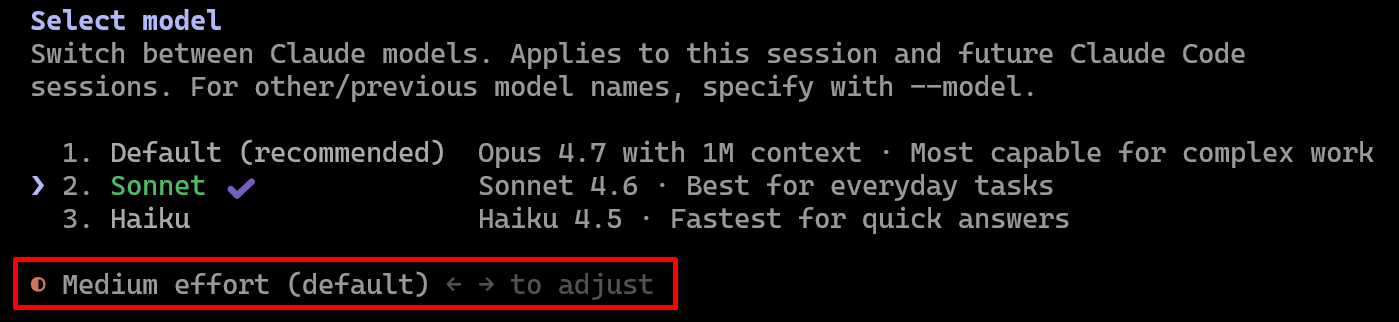
In a nutshell:
- Low effort: this uses minimal thinking, has the fastest response and lowest cost; use it when working on small tasks.
- Medium effort: this has a balance of thinking and speed; use it as the default for common tasks.
- High effort: this has the maximum thinking capabilities; use it when creating a new project or adding new modules, and for deep architecture implementations. This significantly increases output tokens.
Be sure that you are not using a high effort for all the tasks you ask Claude Code to do. Set the effort based on the complexity of the task.
5. Use the btw command
The /btw command lets you ask quick questions without adding them to the conversation context.. You can use it to ask questions with a very low token consumption. When using this command, it uses a separate, temporary context window.
The difference between using this command and asking the questions directly is that when you use the /btw command, it will not pollute the context. If you don't use /btw, the question you ask will be added to the context, increasing token consumption.
6. Keep your CLAUDE.md file small and concise
It is better not to have a huge CLAUDE.md file, as this file will be read on every new session. Keep this file with fewer than ~200 lines and only include in this file the necessary information that Claude needs to know for every single session, and things that Claude should NOT do.
On top of that, also do not add information that Claude already does by default (without having a statement for it), or information that Claude can retrieve on its own (such as reading documentation when needed). Review the file for redundant or conflicting statements and remove them. Also, avoid vague instructions that could lead to inconsistent outputs, as well as details that only apply to a specific, one-time situation.
7. Separate specific rules into different files
Instead of adding all rules in the CLAUDE.md file, split specific information and rules that are only necessary in specific cases (e.g. testing guidelines, database information, deployment rules, etc) into different files, and reference the path to these files in the CLAUDE.md file. This ensures Claude only reads the documentation it actually needs.
For example, you can link files into your CLAUDE.md file, doing something like this:
For testing guidelines, read the file @docs/test-guideline.md
For deployment rules, read the file @docs/deploy.md
8. Use File References
Instead of asking Claude to analyse the entire repository, guide it to the relevant parts of the codebase. You can reference specific files using the @ symbol followed by the file path and file name, for example: @DemoProject.Api\Controllers\UserController.cs.
You can also narrow it down further by mentioning specific methods, modules, or layers. For example, ask Claude to analyse a particular method or investigate an issue within a specific component.
This significantly reduces token usage and improves accuracy.
9. Summarise long chat history
When your chat history starts to grow, and the context limit reaches around ~50%, and you are still working on the same task, you can use the command /compact, to summarise the conversation and reduce context size.
You can also add custom summarisation instruction when using the compact command, this way you can, for example, specify to only consider the last message, or any other instruction you want:

You can use it more than once, but keep in mind that after you do that a couple of times, the quality starts to degrade, so after several compactions, consider starting a new session, and when this happens, you can ask Claude to write a session summary that you can use in the next session, and then you can use the /clear command to start a new session and in this new session you can ask Claude to read the summary that was just created.
Note that by using compact you can lose important details from your session. The summary tries to preserve the important parts of the conversation, but it cannot preserve everything. Some specific things might be lost, and because of that, Claude may have an incomplete picture of what happened and start making decisions based on missing context.
10. Use the .claudeignore file or deny configuration
The .claudeignore file works in a similar way to the .gitignore file. This is a file that can contain files and folders that do not require Claude to read (for example: node_modules/, build/, *.db, *.log, etc). Note that this does not mean that the Claude Code will always read these files, but if you specify these files on it, if, for some case, in some specific situation, Claude Code would try to read these files, this will not happen.
Alternatively, you can also include these files and folders in the deny session in the settings.json file, which contains an array of permission rules to deny tool use:
"permissions": {
	"deny": [
	  "Bash(curl *)",
	  "Read(./.env)",
	  "Read(./.env.*)",
	  "Read(./secrets/**)"
	]
},
11. Avoid adding unnecessary text in the chat
Avoid adding unnecessary text in the chat, as it can also reduce token consumption. For example, if you need to ask Claude Code to analyse an error, instead of copying the whole text of the error (which most of the time contains a lot of text that is not really relevant for the investigation), just add the relevant part of the error message.
12. Combine prompts into a single message
Always, when possible, combine prompts into a single message. For example, instead of asking three things using three different prompts, if they are related, try to write all of them in a single prompt. Just be aware that Claude Code can work better by doing one thing at a time, so just use this tip in case the things you are asking are really related. For example: summarise the text and add bullet points for each topic; this is something that can be done in a single prompt, instead of having two different prompts.
13. Plan Mode before any real task
Ask Claude to use plan mode to explore and propose an approach, before writing any code. Doing that, Claude explores your codebase and proposes an implementation plan. This allows you to review the proposal before work begins. This prevents expensive re-work when the initial direction is wrong.
Claude can create a structure that you can approve before it starts to write any line of code. This can prevent Claude from going in the wrong direction, and then you need to redo the work. For that, you can add a prompt into your CLAUDE.md file for example, to specify to Claude only start to do something until it is confident in what needs to be built, and to ask questions until it reaches that confidence.
14. Configure Hooks and Skills
You can configure Hooks and Skills to filter content that will go to the context windows. For example, think of a scenario where you have automated tests that will be executed. You can use a hook to filter the test cases that succeeded and only pass to the context of Claude the failing tests. Custom hooks and skills offload processing before Claude sees it, reducing context consumption.
15. Do complex tasks out of Peak Hours
Anthropic adjusts how fast your five-hour session window drains based on demand. This means that in peak hours the consumption will be faster. Peak hours are from 5:00 AM to 11:00 AM Pacific Time (PT), from Monday through Friday (weekdays); which corresponds to 2:00 PM to 8:00 PM in Amsterdam (Central European Summer Time). Knowing that you can plan to make big changes outside of peak hours.
16. Auto-memory
Auto-memory is a feature that lets Claude remember things about your project across different conversation sessions. It acts as a background process that analyses your conversation and consolidates some information into memory files for specific projects, which will be reused in other sessions. To configure auto-memory, use the /memory command and disable/enable the Auto-memory option.
Auto memory can save tokens when it stays focused and concise, because it prevents you from repeatedly re-explaining preferences or patterns across sessions. However, it can waste tokens if it becomes bloated with specific details of the session, outdated information, or duplicated content that already exists elsewhere (like CLAUDE.md). To keep it effective, you should only store information that repeats across sessions or is explicitly requested to be remembered. It's recommended to keep the file small and well-organised, and regularly prune anything that is no longer useful or relevant.
You can think about disabling auto-memory to prevent adding content to your context, but there is a trade-off on that. If you disable auto-memory, you might have to manually explain certain project context for the module if you start a brand new section. This is something that you need to keep in mind.
17. Thinking Mode
Instead of generating an answer instantly, the model uses a dedicated "scratchpad" to reason through your prompt, identify potential errors, and plan its strategy before it writes a single line of visible code, this is called the "Thinking Mode".
You can disable this for simple tasks, and enable it when you need more power. For that, use the /config command and enable/disable the "Thinking mode".
18. Max Output Tokens
The "Max Output Tokens" is a configuration limit that controls the maximum length of a single response Claude can send back to you. If you want to save tokens, set this number lower (e.g., 4096 or 8192). Most coding tasks only require a few hundred tokens. If the AI needs more, it will hit the limit and say that have more code to write, and will ask you if it should continue.
To configure it, you can set the environment variable CLAUDE_CODE_MAX_OUTPUT_TOKENS=<inform-max-tokens> in your shell before launching Claude, or configure them in your settings.json under the env key to apply them to every session or roll them out across your team.
More information can be found in this Claude Code doc: https://code.claude.com/docs/en/env-vars
19. Delegate Verbose operations to Subagents
In a standard chat, everything you provide will be reprocessed and will consume tokens in subsequent calls. To avoid this, you can delegate some specific tasks to subagents, preventing your main chat from becoming "bloated".
Subagents run in a "side-car" context, which means that they can do the "heavy lifting" tasks (such as reading large files, searching logs, analysing documentation, etc) in a temporary window, and only the final summary is sent back to your main (more expensive) session. The subagent produces detailed output in its own isolated context. Only the summary returns to your main conversation, keeping your context lean. The benefit of doing that is that each sub-agent has its own context window. By keeping the "noise" of raw data in the sub-agent and only bringing the summary into your main chat, you keep your primary session lean and fast.
Some operations, like running tests, fetching documentation, or processing large log files, produce verbose output that inflates your main context. These are great examples of tasks that you can delegate to subagents. For that, you can write something like:
Use a subagent to run the test suite and report only failuresThe subagent produces detailed output in its own isolated context. Only the summary returns to your main conversation, keeping your context lean.
Some examples of tasks that fit well for subagents are:
- Running tests or CI operations
- Fetching and processing API documentation
- Analysing large log files
- Researching codebases extensively
- Parallel research paths
In short: use a sub-agent for input-heavy, output-light tasks (e.g., parsing large files and returning a summary), and keep tasks in the main agent when they require contextual judgment—decisions grounded in the architectural context built during the session.
20. Course-Correct Early
If Claude is going in the wrong direction, stop the work immediately. For that, you can press Escape to stop. Use /rewind to restore conversation and code to a previous checkpoint. Early course correction costs far less than letting Claude work down the wrong path.
21. The Context Mode Plugin
When working with Claude, every interaction is added to the context window, which of course can increase token consumption. To reduce token consumption, we can use the Context Mode Plugin. This plugin automatically manages the context, and keeps only the relevant part. This plugin acts as an optimisation layer for AI agents like Claude Code, that solves the "context bloat" problem.
Context bloat is when the conversation history grows so large that every new request includes unnecessary past information, increasing token usage and reducing efficiency.
This plugin functions as a smart "buffer", preventing the AI's memory from being overwhelmed by too much information. To achieve this, the plugin utilises a computational sandbox that serves as a private, local processing room, acting as a high-performance filter for the AI's context.
This is how the plugin works: instead of dumping every piece of information directly into the chat's context window (which leads to the "context bloat" problem), the plugin intercepts that data and stores it in a local SQLite database on your machine. It then sends only a concise summary or a "pointer" to the AI model, allowing the model to perform high-speed, targeted searches against that local index only when it needs specific details. By virtualising the data this way, the plugin can drastically reduce token usage, keeping the AI’s "train of thought" focused and sharp even during massive coding tasks.
To install the Plugin, use the commands:
/plugin marketplace add mksglu/context-mode
/plugin install context-mode@context-mode
And then restart Claude, and you can verify if everything went well by running:
/context-mode:ctx-doctorIn case something is missing, you will see a message with the instructions to proceed with the fix.
After working for a while with this plugin, you can also use the following command to check how much you saved:
/context-mode:ctx-statsThis will present a table with some metrics and the context savings percentage.
Link to the plugin: https://github.com/mksglu/context-mode
22. Check consumption with Usage and Consumption commands
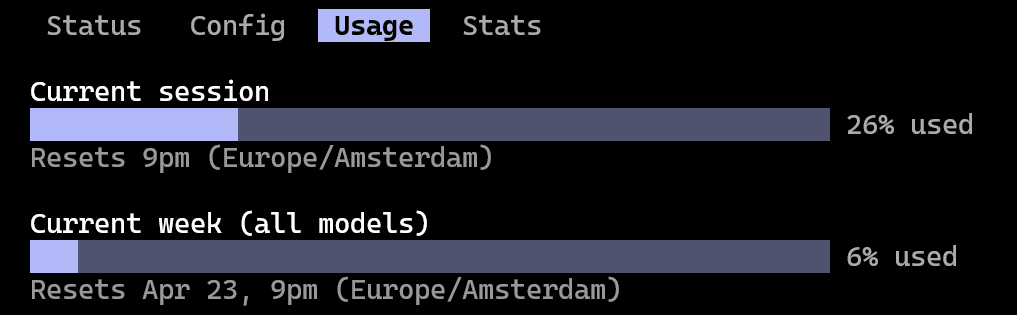
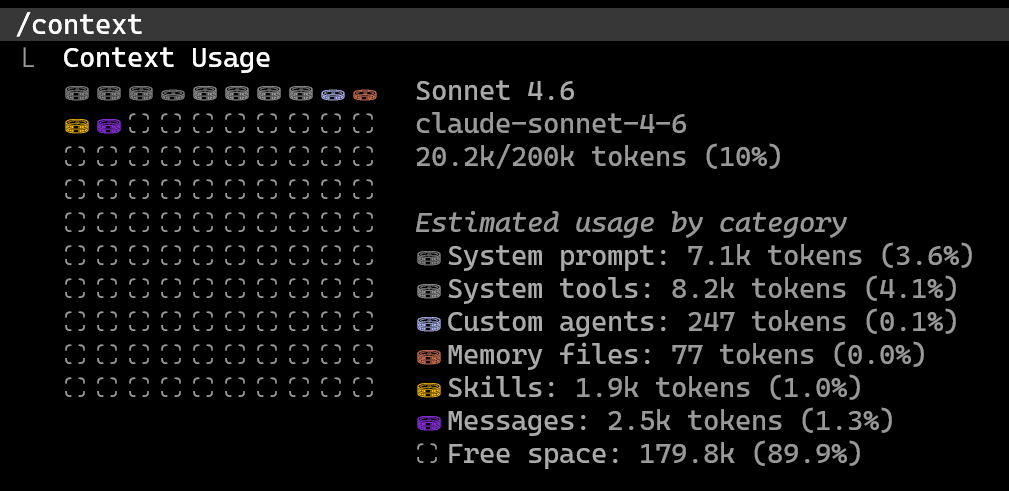
When working with Claude, it is important that you keep track of the usage and be aware of what exactly is consuming your tokens. For that, there are two commands that you can use to check this.
You can use the /usage command to check the session usage and the weekly usage:
You can use the /context command to see exactly what is consuming your tokens:
23. Status line
You can also enable the status line by using the command /statusline, and specify what you want to be displayed (e.g.: git branch, the Model that is being used, session and week usage, etc). This will create a script that builds the custom bar, and it will be referenced in the .settings.json file. Then restart Claude and you will see in the terminal the information you asked to include. For example:

Note: If you are using Windows, it might not work from scratch, and you might need to make some adjustments. If this happens, ask Claude Code to do the necessary adjustments for you. I'm using it on Windows, and I used a PowerShell script to build the custom status bar for Claude Code.
Conclusion
As presented, there are several configurations and strategies that you can use to reduce the token consumption. If you apply these tips, you can end up with sections that can be two to three times longer and use half of the tokens that you would normally use.