For a long time, the .sln file has been the default solution file format for .NET applications. However, the content in this file is not intuitive to read, and it is difficult to handle conflicts in version control systems.
With .NET 9, Microsoft introduced a new solution file format: the .slnx file, which is now the default solution type in .NET 10. This is a XML-based solution format, and was designed to be simpler, more explicit, and more user-friendly. In this article, I will show how to migrate an existing solution to the .slnx file format.
The previous .sln file
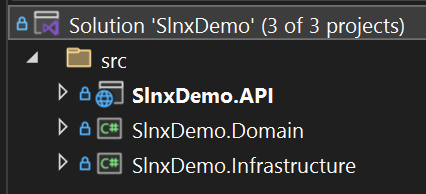
Before showing how the new .slnx file looks like, let’s take a look at the classic .sln file. For demonstration purposes, I created a .NET solution which contains a Web API project, and two class libraries:
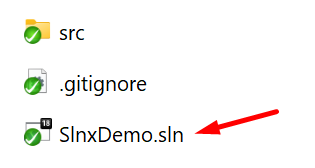
The .sln file is not visible in Visual Studio, so you can use an editor to open the file (it is visible when using Visual Studio Code):
When opening it, you will find the following content:
Microsoft Visual Studio Solution File, Format Version 12.00
# Visual Studio Version 18
VisualStudioVersion = 18.3.11222.16 d18.3
MinimumVisualStudioVersion = 10.0.40219.1
Project("{FAE04EC0-301F-11D3-BF4B-00C04F79EFBC}") = "SlnxDemo.API", "src\SlnxDemo.API\SlnxDemo.API.csproj", "{A23097A5-06C8-4AA9-A7D4-700205FED35E}"
EndProject
Project("{FAE04EC0-301F-11D3-BF4B-00C04F79EFBC}") = "SlnxDemo.Domain", "src\SlnxDemo.Domain\SlnxDemo.Domain.csproj", "{5189EC99-6C84-49BA-AE13-655F71EC3596}"
EndProject
Project("{FAE04EC0-301F-11D3-BF4B-00C04F79EFBC}") = "SlnxDemo.Infrastructure", "src\SlnxDemo.Infrastructure\SlnxDemo.Infrastructure.csproj", "{EF5EF131-F879-499A-B660-A0BF0FD41423}"
EndProject
Project("{2150E333-8FDC-42A3-9474-1A3956D46DE8}") = "src", "src", "{0B44C2F5-A621-4273-A3D4-B07E8BFC1E2C}"
EndProject
Global
 GlobalSection(SolutionConfigurationPlatforms) = preSolution
  Debug|Any CPU = Debug|Any CPU
  Release|Any CPU = Release|Any CPU
 EndGlobalSection
 GlobalSection(ProjectConfigurationPlatforms) = postSolution
  {A23097A5-06C8-4AA9-A7D4-700205FED35E}.Debug|Any CPU.ActiveCfg = Debug|Any CPU
  {A23097A5-06C8-4AA9-A7D4-700205FED35E}.Debug|Any CPU.Build.0 = Debug|Any CPU
  {A23097A5-06C8-4AA9-A7D4-700205FED35E}.Release|Any CPU.ActiveCfg = Release|Any CPU
  {A23097A5-06C8-4AA9-A7D4-700205FED35E}.Release|Any CPU.Build.0 = Release|Any CPU
  {5189EC99-6C84-49BA-AE13-655F71EC3596}.Debug|Any CPU.ActiveCfg = Debug|Any CPU
  {5189EC99-6C84-49BA-AE13-655F71EC3596}.Debug|Any CPU.Build.0 = Debug|Any CPU
  {5189EC99-6C84-49BA-AE13-655F71EC3596}.Release|Any CPU.ActiveCfg = Release|Any CPU
  {5189EC99-6C84-49BA-AE13-655F71EC3596}.Release|Any CPU.Build.0 = Release|Any CPU
  {EF5EF131-F879-499A-B660-A0BF0FD41423}.Debug|Any CPU.ActiveCfg = Debug|Any CPU
  {EF5EF131-F879-499A-B660-A0BF0FD41423}.Debug|Any CPU.Build.0 = Debug|Any CPU
  {EF5EF131-F879-499A-B660-A0BF0FD41423}.Release|Any CPU.ActiveCfg = Release|Any CPU
  {EF5EF131-F879-499A-B660-A0BF0FD41423}.Release|Any CPU.Build.0 = Release|Any CPU
 EndGlobalSection
 GlobalSection(SolutionProperties) = preSolution
  HideSolutionNode = FALSE
 EndGlobalSection
 GlobalSection(NestedProjects) = preSolution
  {A23097A5-06C8-4AA9-A7D4-700205FED35E} = {0B44C2F5-A621-4273-A3D4-B07E8BFC1E2C}
  {5189EC99-6C84-49BA-AE13-655F71EC3596} = {0B44C2F5-A621-4273-A3D4-B07E8BFC1E2C}
  {EF5EF131-F879-499A-B660-A0BF0FD41423} = {0B44C2F5-A621-4273-A3D4-B07E8BFC1E2C}
 EndGlobalSection
 GlobalSection(ExtensibilityGlobals) = postSolution
  SolutionGuid = {EEDF4AD0-E21F-4086-A3FC-40A06882ECB1}
 EndGlobalSection
EndGlobal
As you can see, this file is quite big, contains a lot of GUIDs, metadata, and irrelevant information which are required only by the IDE, making it not so easy to read and maintain. It can also be quite tricky to resolve conflicts in this file when merging changes. All these problems are gone now with the new .slnx file.
Migrating to .slnx
The new .slnx is the standard solution file type that is generated when creating .NET 10 projects, but if you already have existing projects, you can also generate this new solution file format for them. For that, you need to upgrade your projects to .NET 9 or a later version (I recommend using the .NET 10 version, which is the latest Long-Term Support (LTS) release at the moment I’m writing this article).
To migrate your solution to a .slnx file, you can do it via the command line or via Visual Studio (version 2022/2026+).
Creating .slnx file via Command Line
To generate the .slnx file using the command line, you can use the following command to generate a .slnx file: dotnet sln migrate:
λ dotnet sln migrate
.slnx file C:\Users\henrique\github\SlnxDemo\SlnxDemo.slnx generated.
Creating .slnx file via Visual Studio
To generate the .slnx file using Visual Studio, open the solution with Visual Studio 2022/2026, go to File > Save Solution As... >
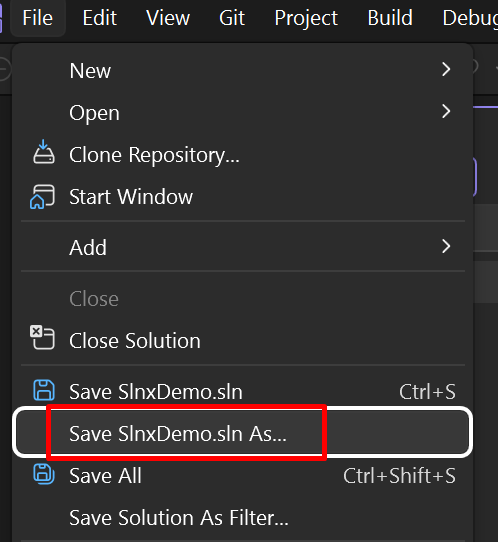
And in the “Save as type” select “XML Solution File (*.slnx)” and save it:
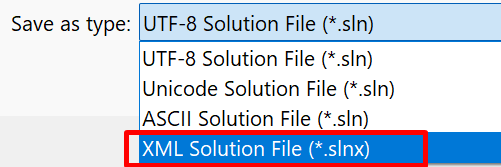
The new .slnx file
You will see that a new .slnx file will be generated:
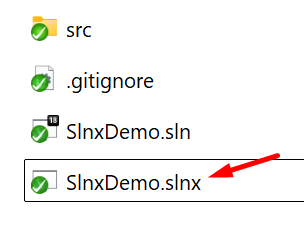
Note that Microsoft’s recommendation is to not have both .sln and .slnx files in the same repository, as this can cause some issues. So after migrating and properly test your project, pipeline, etc, is advisable to delete the .sln file.
Let’s take a look at the newly generated .slnx file. For that, open it using a code editor, and you will see content similar to this:
<Solution>
  <Folder Name="/src/">
	<Project Path="src/SlnxDemo.API/SlnxDemo.API.csproj" />
	<Project Path="src/SlnxDemo.Domain/SlnxDemo.Domain.csproj" />
	<Project Path="src/SlnxDemo.Infrastructure/SlnxDemo.Infrastructure.csproj" />
  </Folder>
</Solution>
Note that the structure of this file is significantly simpler and easier to read. It removes all those GUIDs and the metadata found in traditional .sln files, focusing only on what is essential to describe the solution. As a result, the file is more intuitive to understand and easier to maintain.
Conclusion
The .slnx file is a nice improvement that came with .NET 9, and it is the standard solution file type that is generated when creating .NET 10 projects. It removes a lot of unnecessary information that was present in the previous .sln file, making it cleaner, easier to read and maintain.
This is the link for the project in GitHub:
https://github.com/henriquesd/SlnxDemo
If you like this demo, I kindly ask you to give a ⭐️ in the repository.
Thanks for reading!
References